 Hocasa
THE HOCASA GUIDE
A place for
every next step.
From the first swipe to the next viewing. Get to know your app, one simple step at a time.
Screenshots captured in Hocasa on the iPhone 17 simulator. Example properties are for demonstration.
01
Make yourself at home.
Choose how you want to use Hocasa: find a home, manage properties, or both.
- Create an account or sign in, then complete your profile.
- Home seekers start in Discover. Owners and agents use Workspace. If you do both, switch modes from Profile.
- Choose your city or neighbourhood and select Rent or Buy to see the relevant homes.
The introductory tour points out the main controls. Replay it from Profile → Help & About → Take the app tour.
02
Three views. Your kind of search.
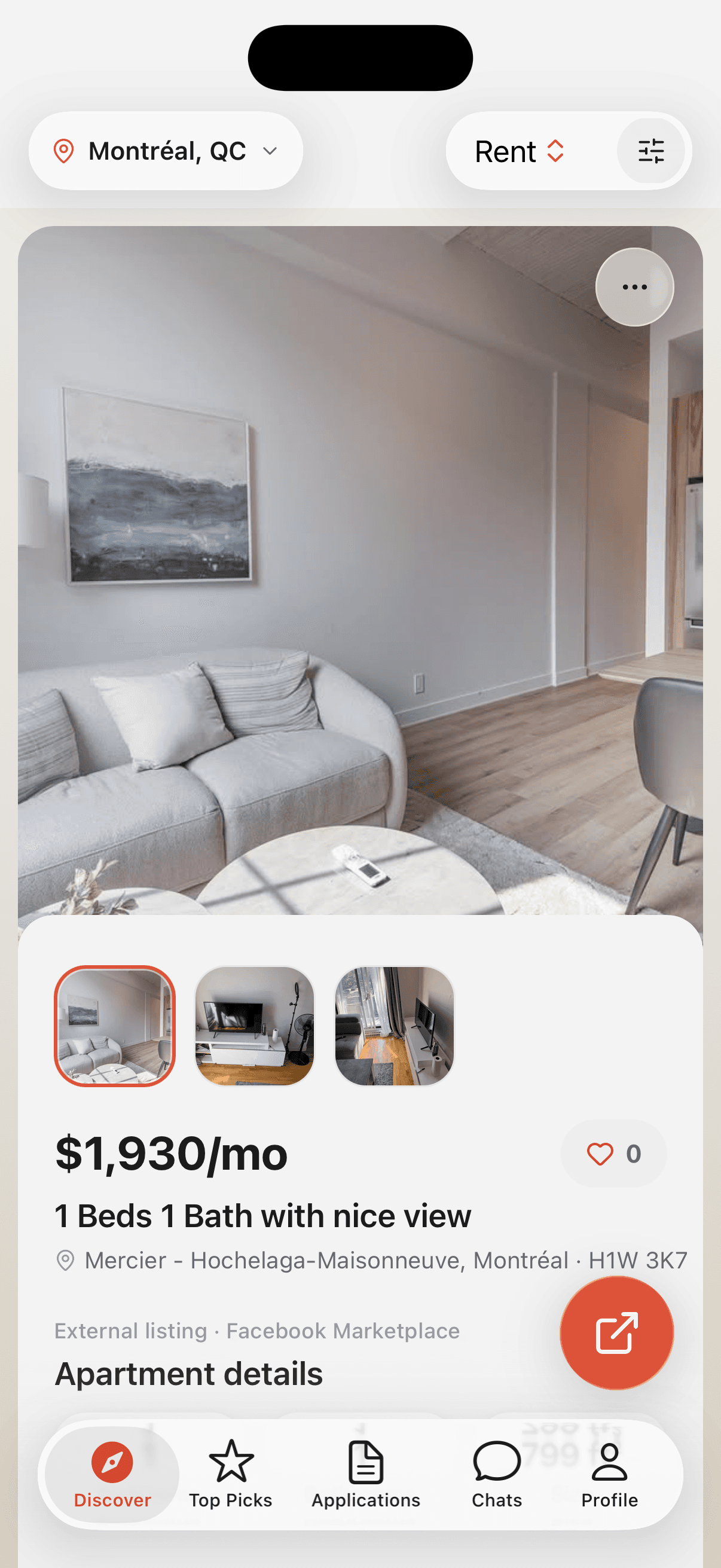
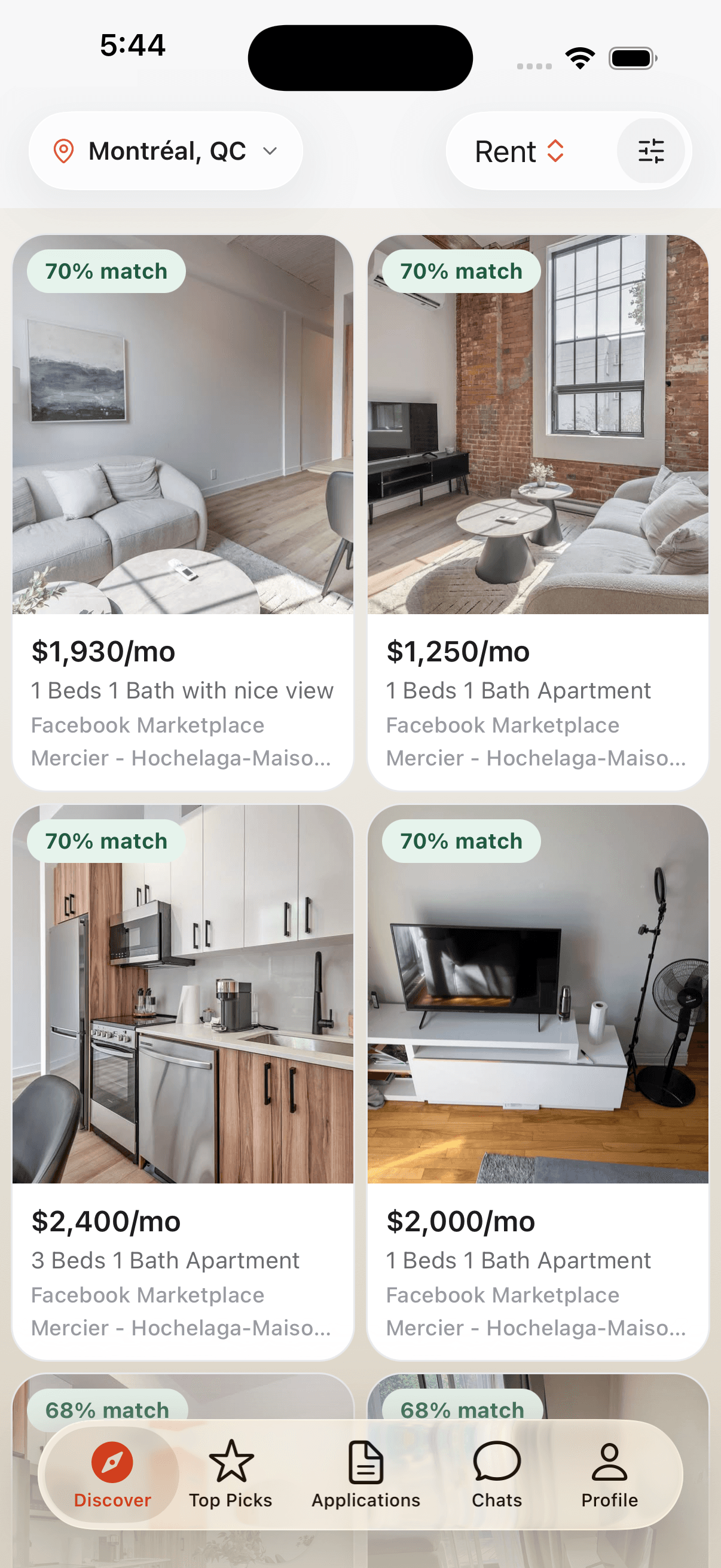
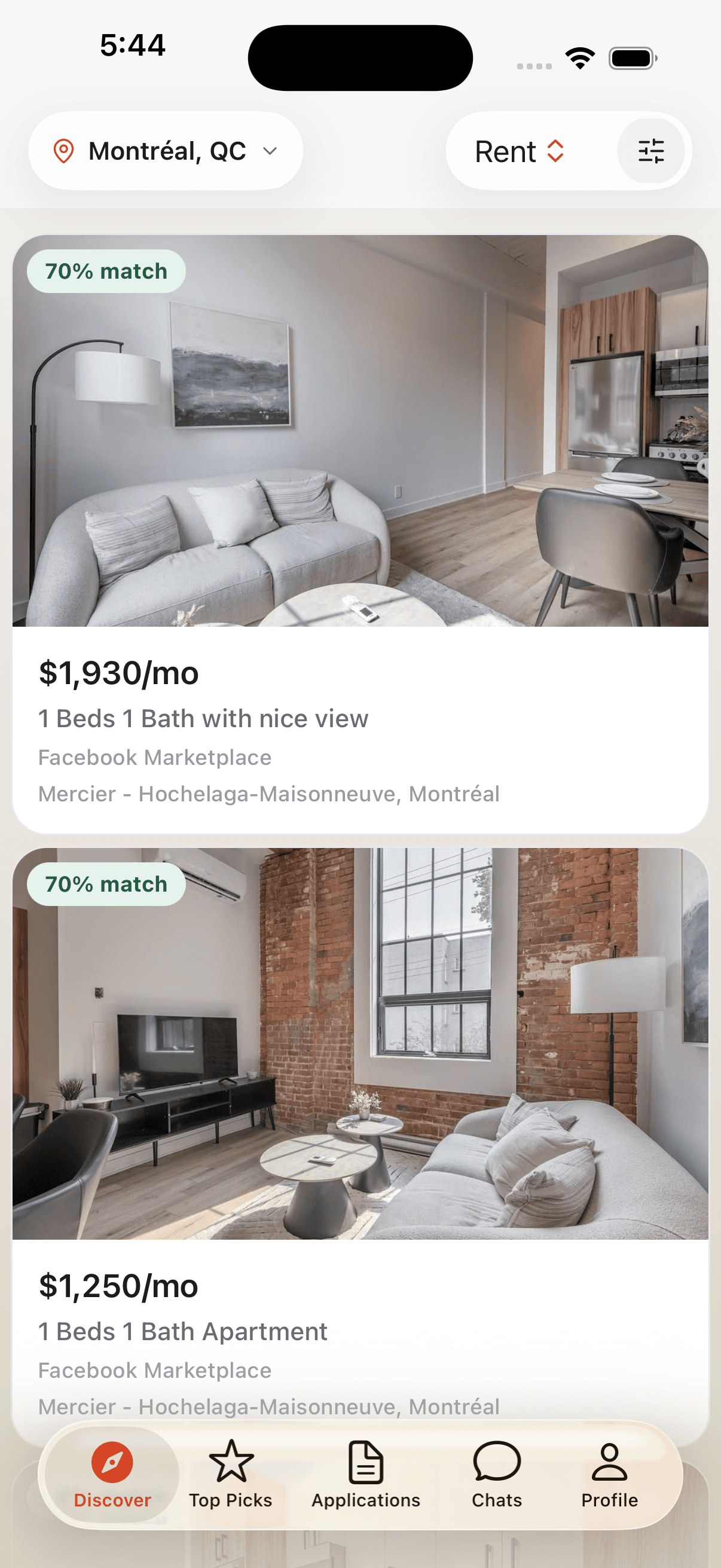
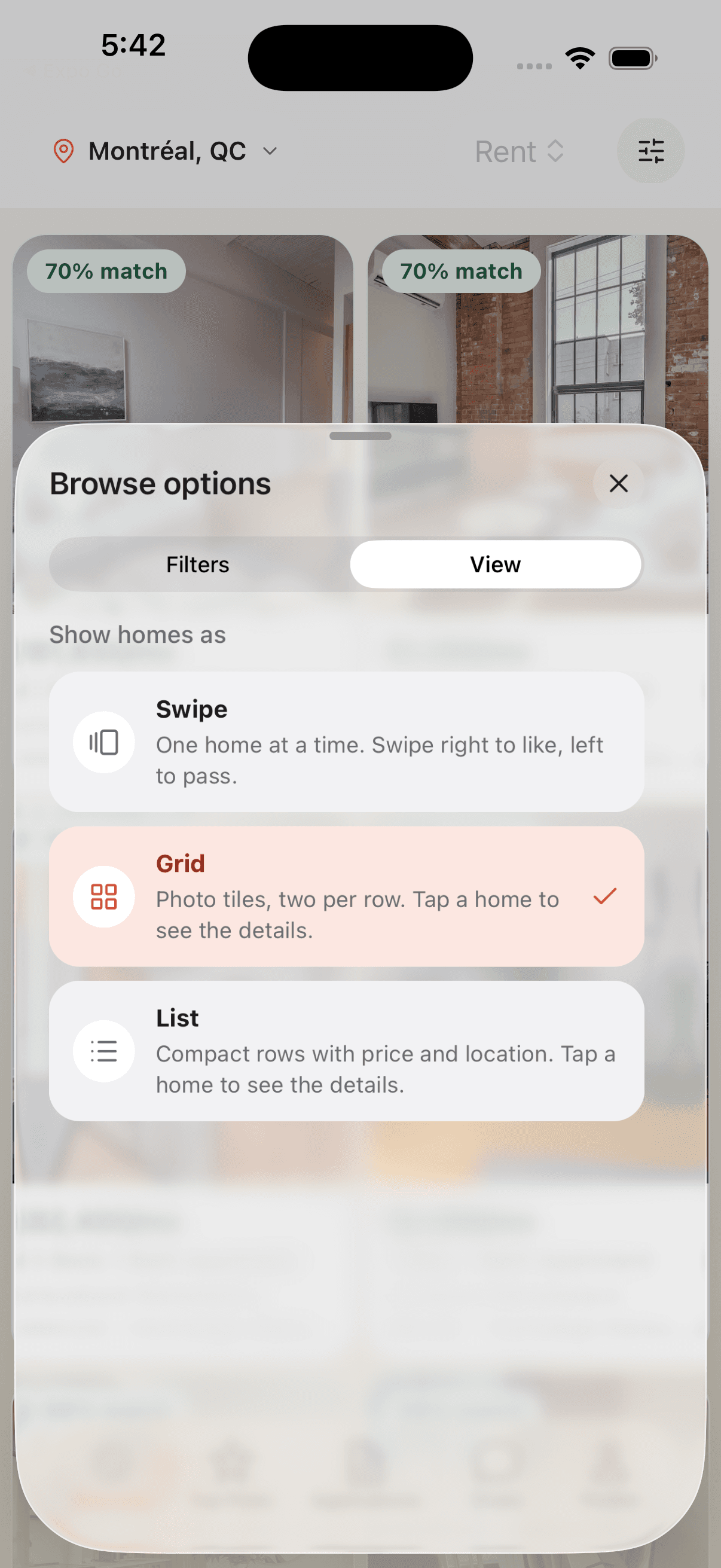
Open Discover → Browse options → View. Pick the way you like to look.
| View | How it works |
|---|---|
| Swipe | Swipe right to like, left to pass. Use the visible actions if you prefer tapping. Undo is available for the last eligible swipe. |
| Grid | Browse photo tiles, two per row on iPhone. Tap a home to open its details. |
| List | Browse compact rows with price and location. Tap a row for the full listing. |
Changing views keeps your Rent or Buy choice. To change which homes appear, adjust your filters.
03
A little more you.
Narrow your search to the things that matter.
- Set your city or neighbourhood in Discover.
- Open Browse options → Filters. Choose your radius, budget, bedrooms and must-haves.
- Use Search listings for a title or keyword, such as balcony.
- Choose Apply Filters to refresh your results.
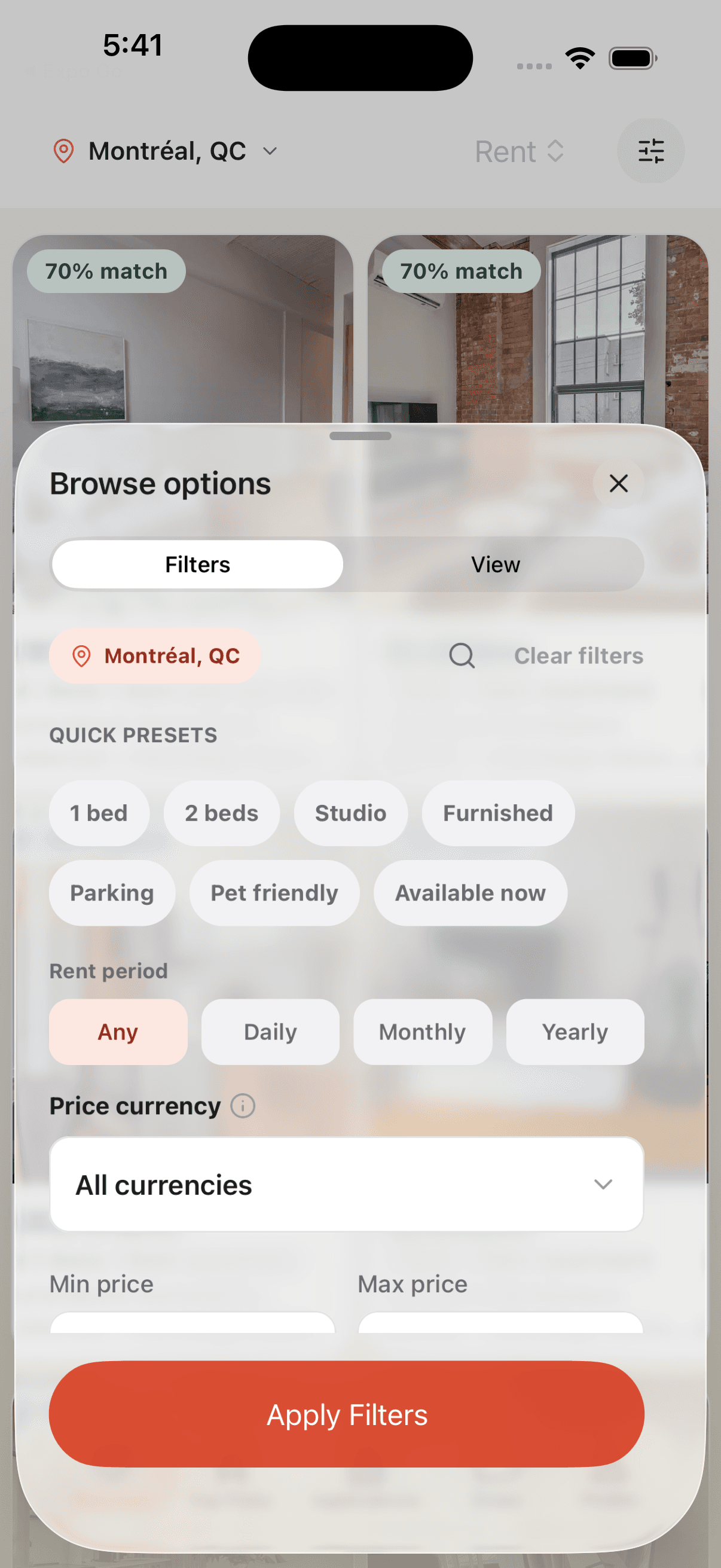
No homes showing? Broaden the radius, clear a restrictive filter or try another area. Check the displayed currency and rental period when comparing prices.
04
A home from elsewhere.
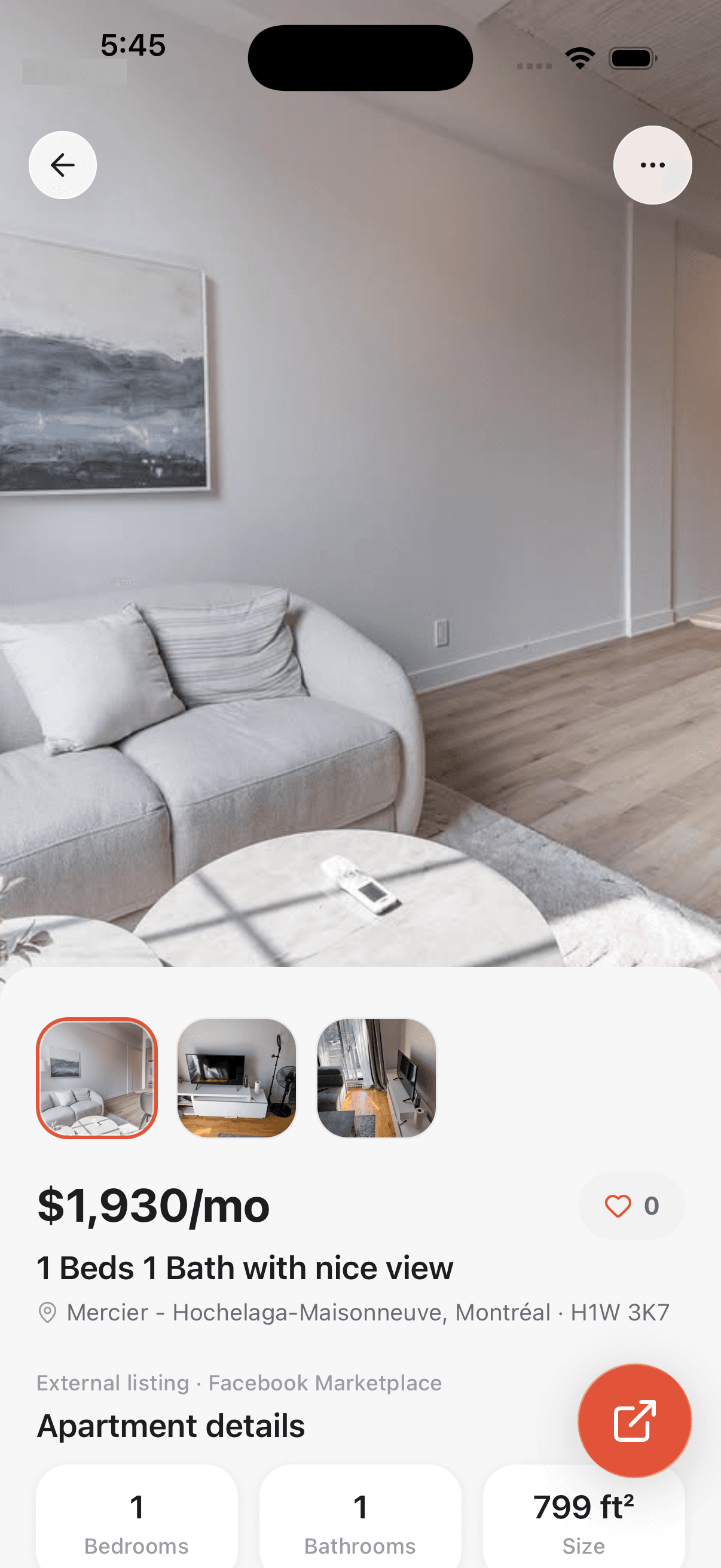
Some properties come from an external source, such as Facebook Marketplace.
Look for the External listing label and the source name on the home. Open the external-link action to see the original listing and follow the contact or enquiry options there.
External listings can have a different enquiry flow from homes managed directly in Hocasa. Check the original source for the latest availability, price and contact information.
05
Find your kind of place.
Match percentages and Top Picks help you compare homes against your preferences.
Open Top Picks for another way to explore ranked homes. Update your profile and search preferences to make the results more relevant.
A match score is a discovery aid. Check the listing details and availability before making plans. A megaphone beside a score indicates paid placement; tap it to see the sponsorship label.
06
From “hello” to “see you there”.
For homes managed in Hocasa, keep the conversation and viewing details together.
- Open the home’s available contact action to start a chat.
- Use the scheduling action in the conversation to suggest a viewing time.
- Look for a viewing card. The other person can accept, decline or suggest another time.
- Check the confirmed appointment before travelling. Find Tours through the Applications options menu or Workspace.
Pending means a time still needs agreement. Confirmed means the visit was accepted. A proposed reschedule keeps the original confirmed time until the new one is accepted. Reminder delivery depends on your preferences and device permissions.
07
Your next move, in view.
Submit an application through the property’s available application action or conversation.
- Review Profile to share and update any missing details.
- Add supporting documents if you want to include them.
- Check the preview and submit. Track the record in Applications and in the chat card.
Applied means submitted. Review means the owner is reviewing it. Approved and Declined record the owner’s decision. Approval does not itself complete a lease or payment.
Owners open Applications to review the information shared, follow up in chat and record a decision.
08
A calm place to manage your places.
Workspace brings your listings, conversations, viewings and boosts together.
- Use the plus button or My Listings to add a property.
- Enter its address, map location, price, description and details. Add at least three different photos and complete the editor’s remaining requirements.
- Save as a draft while you prepare. Publish when the listing is ready.
- Use the listing’s menu to edit, preview, share or pause it.
Rental listings can include a rent period, lease terms, included utilities and additional fees. Sale listings have their own ownership and possession fields. Check the currency before entering amounts; changing it does not convert prices.
Boosts are optional paid placement. Review the price, duration and auto-renew setting before confirming. Wallet balance is app credit. Open a transaction to see its state and linked item.
09
Settle into your settings.
Keep your profile, preferences and updates in one place.
Profile contains your personal details, theme, language and notification preferences. Activity collects updates and links to the related records. Closed conversations can be found through Archive.
For help, open Profile → Help & About, or contact the Hocasa team.